Adjust Dates
User Interface
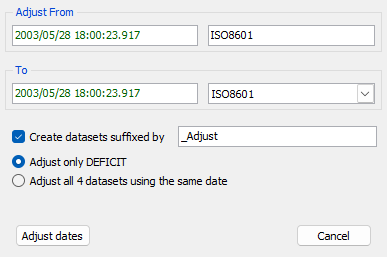
The Adjust Dates window allows adjusting a datasets dates, by changing the date format or by shifting the date values by a given offset. It can be displayed from the Data Sets popup menu by activating the popup menu on the dataset to adjust.
The dialog contains the following elements:
- Adjust From - Displays the first date in the dataset and the current format. The date can be adjusted to set the equivalence date. (*)
- To - Allows the user to set a specific date that the 'From' date will be adjusted to. (*)
- Create datasets suffixed by - Create a new set of datasets with the adjusted dates by adding the suffix to the names. If unchecked (no suffix) the datasets will be updated without copying.
- Adjust only this dataset - This dataset will be separated from the other datasets using the same dates before adjusting.
- Adjust all of the datasets - All of the datasets using this date will be adjusted.
(*): The dates can be adjusted quickly using the Keyboard shortcuts.
e.g.
1) The dates for a dataset need to be shifted by a set time (1 hour), adjust the 'From' date value to be one hour (PG-Up see Keyboard shortcuts) before of the 'To' date.
-adjustdate "VBAT from=2003/05/28 18:00:23.917 to=2003/05/28 19:00:23.917"
2) The second dates for a dataset need to be changed to a calendar date, adjust the 'From' seconds value to be the equivalent calendar date and format to the 'To' calendar value.
-adjustdate "FLIGHT1 from=0 to=ISO8601:2003/05/28 19:00:23.917"
3) The calendar dates for a dataset need to be changed to a seconds offset, adjust the 'From' calendar date value to be the equivalent of the 'To' seconds value.
-adjustdate "VBAT to=SECONDS:0" (The from is the first value of the dataset)
4) All of the datasets using the same date (from the same file) can be adjusted at the same time using the 'group=all' option.
-adjustdate "VBAT group=all to=SECONDS:0"