Configure Graph Axis
The Configure Graph Axis window changes the appearance of one graph axis. The name of the graph and the axis are displayed on the title bar.
User Interface
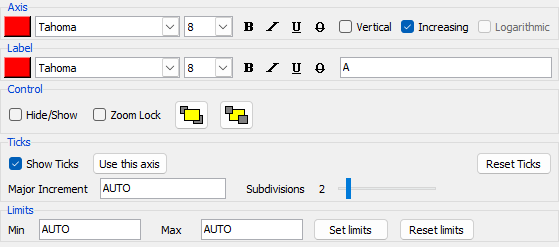
Data Axis
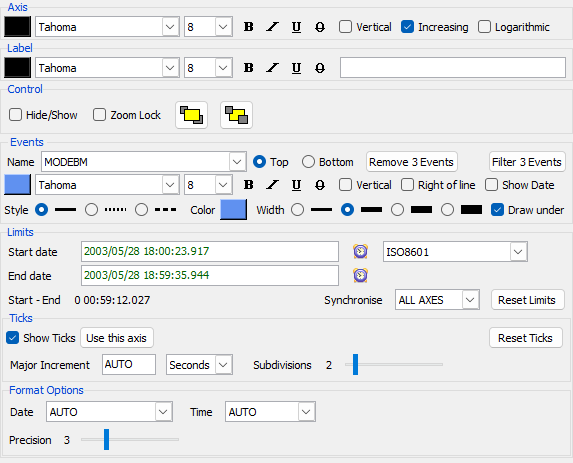
Date Axis
Configure Window Menu
The dialog menu contains the following specific entries:
- Copy configuration command to clipboard - Copies only settings different from the defaults to the clipboard as
-configurexaxisor-configureyaxiscommand line options. - Copy complete configuration command to clipboard - Copies the current set of settings to the clipboard as
-configurexaxisor-configureyaxiscommand line options.
Tip
This can be activated using the two shortcut buttons on the bottom of the dialog
Configuration
The following elements can be changed:
-
Axis Change the color, font and orientation of the tick labels and lines used for the axis as well as the order of the axis (increasing or decreasing) and if the scale is linear or logarithmic.
-
Label Change the color, font and text of the label displayed on the axis.
-
Control Change how this axis is managed:
- Hide/Show the axis and all text.
Tip
- This is useful when two date axes have the same time base, one can be hidden to increase the plotting space.
- It is possible to quickly hide an axis by using the Control key with the right mouse button.
- Lock this axis so that it will not be changed using the automatic zoom, it can be modified by changing the limits or using the selective axis zooming. When an axis is locked its background color is changed.
- Move this axis to the right of/on top of the other axes.
- Move this axis to the left of/underneath the other axes.
-
Events Import onto this axis and display sets of vertical event markers (labels and vertical markers) from a labelled dataset, this will show either the dates that the dataset changes state (including the initial state) or all of the dates: !!! tip - Importing the events will use the current set of options. - To change the options first select the set of markers then change the options.
- Name of this set of markers to configure or import.
Tip
- The
----------item (if present) separates the datasets which have the same date (came from the same file) from those which came from a different file and which may not have the same date values and may not be visible on the graph. Selecting this item will be ignored.
- Top - Display the labels on the top of the graph.
- Bottom - Display the labels on the bottom of the graph.
- Remove or Import all event markers for this set and axis.
- Filter the event markers for all available markers.
- Change the color, font and orientation of the text labels showing the event state and optional date of the marker.
- Change the color, style and position relative to the data elements, of the vertical event bars.
N.B. Changing the marker color will also change the color of the text labels*
Tip
- Clicking on a marker with the mouse will display the date for the marker.
-
Ticks Change how the axis tick marks are displayed and labelled. The contents of this element changes depending on whether this axis is a Date axis, Label axis or Numerical axis:
- All axes:
- Hide/Show all tick marks and their labels for this axis.
- Use this axis as the controlling axis for the grid as in the configure graph window.
- Major Increment - sets the step interval for major tick marks and labels.
- Subdivisions - sets the number of subdivisions indicated by minor tick marks to be displayed. (check tip below)
- Reset Ticks - resets the tick marks back to their initial configuration
- LABEL axis ONLY:
- Display label values as Labels or as numerical values.
- Date axis ONLY:
- The
Custom Date Formatcheck box allows certain parameters to be changed depending on the Date format selected. - Set the major increment in Days, Hours, Minutes, Seconds, Milli, Micro, Nano or Pico.
- The
Tip
- Setting the sub division to 1 removes the minor tick marks.
- All axes:
-
Limits Change the minimum and maximum limits displayed for this axis. The contents of this element changes depending on whether this axis is a Date axis or not:
- Numeric axis - Enter the numeric minimum and maximum limits and press the
Set limitsbutton orEnter. EnteringAUTOwill set this limit according to the data values associated with this axis. -
Date axis - The date limits can be changed in several ways:
- Using the
 buttons to display a date Date Picker popup.
 - Entering a new date directly in the entry boxes and pressing enter. When the displayed dates are green, they are correct and will be applied directly to the graph, when they are red, there is an error in the date/time format and it must be corrected. (check tip below)
This window also displays the time between the start and end limits in
Days HH:MM:SS.mmmformat.The
Date FormatDrop down allows the format for this axis to be changed (see the Date format page for more details). TheSynchroniseselection allows the time axes to be associated (see the Synchronisation page for more details). TheReset limitsbutton restores the initial limits for this axis (see the Synchronisation page for its action when the axes are synchronised). - Using the
Tip
- When the cursor is in the Start/End date entries the UP/DOWN arrows change the time +/- 1 minute and the PGUP/PGDOWN by +/- 1 hour and Control-PGUP/PGDOWN by +/- 1 day.
- The standard windows COPY/PASTE work in these entries, so whole dates can be copied to align multiple date axes.
- Numeric axis - Enter the numeric minimum and maximum limits and press the