Graphs
PrestoPlot can display a large number of Graph windows (Tested with > 100) at the same time.
User Interface
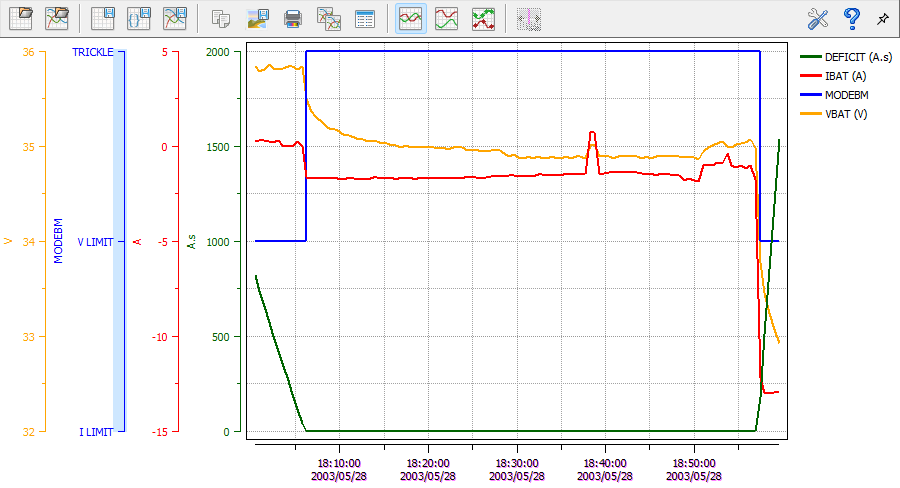
A Graph window contains the following elements:
- Window Menu - All actions local to this graph.
- Tool Bar - Actions local to this graph.
- Graph - The traced data values.
- Axes - One axis for each unit displayed and one for each timebase.
- Legend - The list of all the displayed data sets.
Graph Window Menu
The graph menu contains the following specific entries:
- Import Model ... - Use the graph attributes found in a PrestoPlot model (*.pmdb, *.pmd) or graph (.pgrb, .pgr) file on this graph.
N.B. If a graph file is loaded all attributes will be used (including date axis attributes except the start and end dates), no data will be loaded.
- Import Graph ... - Use the data sets and attributes found in a PrestoPlot graph (*.pgrb, *.pgr) file on this graph.
- Save Model ... - Save this graph (element names, axes, attributes, markers) - but no data values - to a PrestoPlot model (*.pmdb) file.
N.B. The time axes and their attributes are not saved: a model file can be used to display data sets from different files and the time base is not guaranteed to be identical between files.
- Save Graph ... - Save this graph including all attributes (including markers) and data values to a PrestoPlot graph (*.pgrb) file.
- Copy to Clipboard (¹) - Copy this graph to the windows clipboard as Windows Metafile data. (only available on the windows platform)
- Print ... (¹) - Print this graph to a windows printer.
- Save as Image ... (¹) - Save this graph as an image (currently png/gif/emf/eps are supported on windows and png/gif/eps on Linux with ps available on some Linux systems).
N.B. If the Hardcopy Marker option is on, the current time and date will be displayed on the graph for the three hardcopy options (¹).
- Show Data Table - Display the Show Data window linked to this graph: selecting any data points on the graph will highlight the data values in the show data - window.
- Hide Tool Bar/Show Tool Bar - Hide/Show the tool bar for this graph window.
- Rename Graph - Change the displayed title for this graph window.
- Configure Graph - Display the Configure Graph window for this graph.
- Configure Axes -> - This submenu contains an entry for each displayed axis which will display the Configure Graph Axis window to change the appearance of the axis on this graph.
- Configure Data Set -> - This submenu contains an entry for each displayed data set which will display the Configure Graph Data window to change the appearance of the data sets on this graph.
- Reset Zoom - Reset the all axes back to their original settings (same as 'Reset limits' for each axis), and empty the zoom stack.
N.B. Using both the Configure Graph Axis window to change axes limits and the graph zooming may have an unexpected effect on the graph. Use this menu option to restore the zoom
Tool Bar
| Icon | Action |
|---|---|
 |
Import Model Use the graph attributes found in a PrestoPlot model (*.pmdb, *.pmd) or graph (*.pgrb, *.pgr) file on this graph. N.B. If a graph file is loaded all attributes will be used (including date axis attributes except the start and end dates), no data will be loaded. |
 |
Import Graph Use the data sets and attributes found in a PrestoPlot graph (*.pgrb, *.pgr) file on this graph. |
 |
Save Model Save this graph (element names, axes, attributes, markers) - but no data values - to a PrestoPlot model (*.pmdb) file. N.B. The time axes and their attributes are not saved: a model file can be used to display data sets from different files and the time base is not guaranteed to be identical between files. |
 |
Save to PGD file Save this graph (element names, axes, attributes - but no data values) to a PrestoPlot Graph Description File. This will ask for a filename then open a dialog to configure a set of options. |
 |
Save Graph Save this graph including all attributes (including markers) and data values to a PrestoPlot graph (*.pgrb) file. |
 |
Copy Graph to Clipboard (¹) Copy this graph to the windows clipboard as Windows Metafile data. (only available on the windows platform) |
 |
Save as Image ... (¹) Save this graph as an image (currently png/gif/emf/eps are supported on windows and png/gif/eps on Linux with ps available on some Linux systems). |
 |
Print Graph (¹) Print this graph to a windows printer. N.B. If the Hardcopy Marker option is on, the current time and date will be displayed on the graph for all three hardcopy options (¹). |
 |
Duplicate graph Make a new copy of the current graph. |
 |
Display data Display the Show Data window linked to this graph: selecting any data points on the graph will highlight the data values in the show data window. |
 |
Overlay axes Reset limits of all vertical axes, so the datasets will be overlayed. N.B. This will restore the mouse wheel zooming on all unlocked axes, indicated by the button staying highlighted. |
 |
Spread axes Spread all vertical axes: adjust the limit of each Y axis to make sure the datasets don't overlay. N.B. This will also limit the mouse wheel zooming to only horizontal axes, indicated by the button staying highlighted. |
 |
Activate data points Activate all the data points using the ActiveSymbol (default circle). |
  |
Scroll Lock Block/Allow the Time server scrolling when the date changes. This allows the graph data to be viewed without scrolling to follow the time marker. When pressed (unlinked) the time marker will update its position but the graph will no longer scroll to keep the time marker visible. |
 |
Graph Configure Display the Configure Graph window for this graph. |
 |
Help Display the help for the Graph. |
 |
Hide tool bar Remove the tool bar for this graph. (N.B. The tool bar can be restored in the window menu). |
Tip
The tool bar can be placed on any of the edges of the graph window by dragging it to that edge or pressing the right mouse button on any blank space and selecting an edge on the popup menu.
N.B. Some tool bar buttons can be used with both left and right mouse buttons.
Graph
The graph plot area shows the plot lines for each data element. The appearance of the plot region can be changed in the configure graph window ( button).
It is possible to move the whole graph area by dragging using the left mouse button on any part of the plotting area that does not contain data or markers.
Tip
Pressing the Alt key while dragging the graph will update the horizontal time axes of all graphs to the same limits.
Data Point Information
Pressing the left mouse button over any of the data lines will display a small popup showing information about the closest data value to that point (N.B. If this graph is linked to the Show Data window the corresponding data value in the show data window will be highlighted. Pressing the right mouse button over any of the data lines will display a menu to copy the date or the value of the data point to the clipboard.
Tip
Activating the data point display will facilitate selecting a specific point.
Zooming
PrestoPlot allows two different methods for zooming a region of the graph:
- Selecting a region - A region of the plot area can be enlarged by dragging out a rectangle with the middle mouse button pressed, the selected region will increase in size to fill the whole plot area. A new region can be selected within a previously zoomed region. To return back to the previous zoom, click on the plot region with the right mouse button.
- MouseWheel - Turning the wheel on a mouse will zoom in or out one step for each click. The zoom will center on the current mouse position on the graph.
Tip
Using the Right mouse button with the Shift key pressed will reset the zooming.
Tip
- Pressing the Shift key while zooming with the mousewheel will fix the zoom to 50% per step.
- Pressing the Control key while zooming with the mousewheel on a graph will constrain the zoom to only horizontal axes.
- Pressing the Alt key while zooming on a graph will update the horizontal time axes of all graphs to the same time limits.
It is also possible to selectively zoom one axis of the graph (even when locked) by selecting a part of the axis using the middle mouse button or using the mousewheel. (if this axis has been synchronised with other axes then the other axes may also be changed, see Synchronisation). If the selection is started on a tick value then the selection will be limited to major tick values and the current limits, and if the selection is started on the axis line then any range of values can be selected. The new limits will be displayed during the selection.
Axes
There are Y axes representing each data unit type and X axes representing each time base or unit type: their appearance can be changed by clicking on the axis with the right mouse button to display the Configure Graph Axis window. If the Folding option is active in the preferences then there may be only one Y axis for each group of identical labelled axes. If two non date X axes have the same X label then there will be only one X axis for each unit value. It is possible to separate these X axis by changing the X label in the Dataset window for any dataset using the X data.
Tip
The axis will change color when the mouse pointer is positioned over it to make actions easier.
Sliding
It is possible to change both the start/min and end/max limits of any axis by sliding the axis using the left mouse button, the new limits and the distance of the slide will be displayed during the slide (if this axis has been synchronised with other axes then the other axes may also be changed, see Synchronisation).
Tip
Pressing the Alt key while sliding a time axis will update the horizontal time axes of all graphs to the same limits.
Legend
The legend gives the list of all drawn data sets with an example of their plot line
The legends position can be changed in the Configure Graph window ( button).
N.B. Using the right mouse button to click on an entry in the legend will display the Configure Graph Data window, which can be used to change the appearance of the graph element.
Tip
Clicking on the name of an dataset will activate all the data points using the ActiveSymbol.
Adding or Removing data
Data sets can be added to the graph window by selecting the sets in the data sets window and dragging them with the left mouse button pressed onto the graph window and releasing the button.
Tip
It is also possible to drag single data sets between two graphs using this method.
Data sets can be removed from the graph by dragging them out of the graph window (but not onto another graph window).
Time Markers
A set of synchronised time markers (all the markers show the same date) can be activated for all graphs from the Tool bar. The time markers can be moved by dragging them with the left mouse button and all the markers on all the graphs will move at the same time. Including scrolling the graphs to make the markers visible unless the Scroll Lock is active.
A right mouse click on the marker will open the Configure Time Marker dialog.
N.B. If the date axes on a graph are not synchronised, it is possible to see the multiple time markers (one for each date axis).
Tip
If the time marker is not in the visible space of a graph then PrestoPlot will display a small arrow button ( or
or  ) indicating the direction of the marker, a left mouse click on the arrow will adjust the associated date axis so that the time marker is in the middle of the graph.