Preferences
The Preferences window allows a number of elements of PrestoPlot to be modified, these changes are saved in a configuration file and will remain between two executions of PrestoPlot.
The window is split into sections using multiple tabs:
- General - Miscellaneous configuration options.
- Data - Options to configure data handling.
- Graphs - Options to configure graphs.
- Axes - Options to configure Axes.
- Markers - Options to configure Markers.
- HardCopy - Options related to the Hardcopy of a graph window.
- Calculator - Options related to the Calculator window.
- Window Tabs - Options related to the Window Tab Bar.
- Command Log - Options related to the handling of batch files for command line processing.
- Plugins - Options related to the handling of any Plug-ins.
Buttons

There are four buttons on the bottom of the preferences window
- OK - Apply any changes made to the preferences and close the preferences dialog.
- Apply - Apply any changes made to the preferences and leave the preferences dialog open.
- Cancel - Close the preferences dialog and cancel any preference changes.
- Advanced - Open the Advanced Preferences dialog.
General tab
-
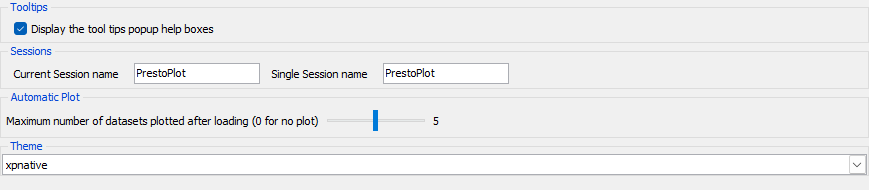
Tooltips - Display the tool-tips popup help boxes over the tool bars after a short delay.
-
Sessions - Shows the current session name and the default session name for PrestoPlot. Only ONE copy of PrestoPlot can have the same name at a time.
The current session name can only be changed if no other session has the name.
If the default session name is changed any new PrestoPlot executions will use the new name, an empty name will allow multiple individual sessions.
N.B. The default single session name is ignored if PrestoPlot is used from the command line for more than one data file load/import or if the command line override option (-nosession) is used.
-
Automatic Plot - Sets the maximum number of data sets loaded to be automatically plotted (0-10).
Example : If 'Automatic Plot' is 4 and three data sets are loaded from a file, then a graph window will be automatically opened and the three data sets will be added to it.
Info
Setting this value to 0 will disable automatic plotting of data
-
Theme - Change the display theme. Choose one of the installed themes from the list
Data tab
-
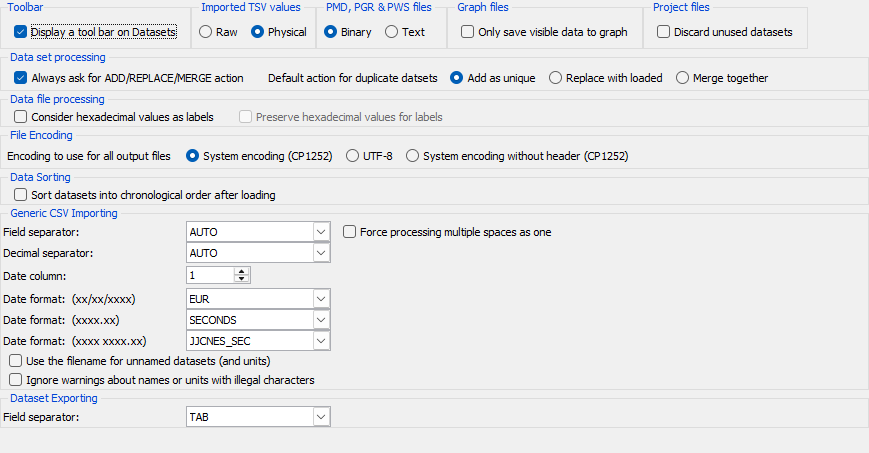
Display a tool bar on Datasets - Display the tool bar on the datasets window (the tool bar can be restored at any time in the Datasets window menu).
-
Imported TSV values - Select if raw or physical values are loaded from G3/DRPPC TSV files.
-
Graph files - Select to only save the visible data points in the PGRB files.
-
Project files - Select to only save the datasets used in PPJ files.
-
Data set processing - Select how to handle loading duplicated datasets.
- Add as unique will generate unique names by adding '_n' to all of the names,
- Replace with loaded will overwrite any existing data sets,
- Merge together will merge the two datasets together and remove double entries, this will sort the new dataset.
-
Data file processing - Select how hexadecimal values (0x1234) are handled
- Consider hexadecimal values as labels if hexadecimal values should be imported as labels. Otherwise they will be converted into decimal values.
- Preserve hexadecimal values for labels if imported labels should preserve the numerical values for the labels.
-
File Encoding - Select the encoding used for files produced by PrestoPlot:
- System encoding will use the encoding defined by the system,
- UTF-8 will always use UTF-8 (only available if the system encoding is not UTF-8)
-
System encoding without header will use the encoding defined by the system but will not write the encoding header.
If the encoding is written to the header of the file, it will be used when reading the file. Any manual editing should use the current encoding for the file or some character information may be lost.
-
Data Sorting - Select if all loaded datasets should be automatically sorted into chronological order after loading.
-
Generic CSV Importing - Options to handle different types of Generic CSV format files.
- Field separator The character used to separate the values into different columns.
- Force Multi Space Force treating multiple spaces as a single space separator.
- Decimal separator The character used to separate whole numbers from the fractional part.
- Date column The column representing dates, use 0 for no date column (LINE_NUMBER).
- Calendar date format The format to be used if a date of type xx/xx/xxxx to set DAY/MONTH or MONTH/DAY.
- Numerical date format The format to use if a date is of type xxxx.xx numerical.
- Double date format The format to use if a date is of type xxxx xxxx.xx double numerical. See Date Formats for a detailed explication of the formats.
- Use filename If a CSV file does not contain the naming headers (Names and/or Units) use the name of the file as a base for naming the datasets.
Example : If the file name is 'IBAT(A).csv', then the dataset will be named 'IBAT' with its units set to 'A'.
- Ignore warnings If checked there will be no more warnings that dataset names or units are incorrect and have been updated.
-
Exporting - Options to handle exporting data values.
- Field separator The character used to separate the values into different columns.
Graphs tab
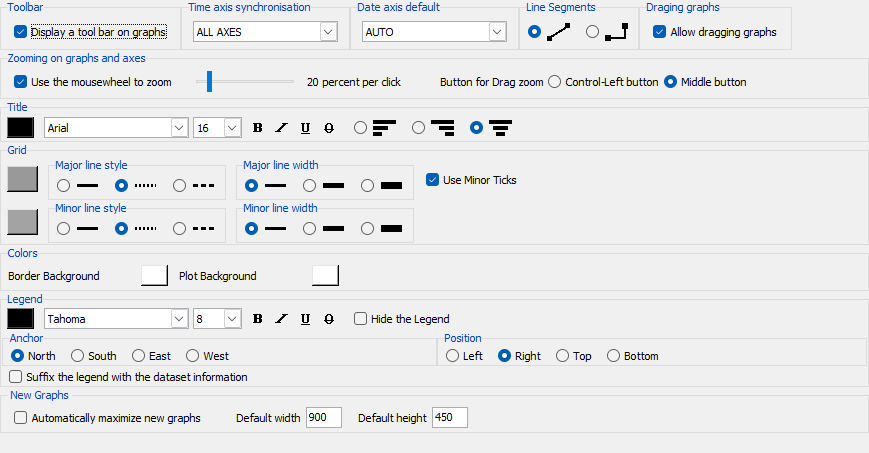
- Tool bar - Display the tool bar on new graph windows (the tool bar can be restored at any time in the graph window menu).
- Time axis synchronisation - Choose the default time axis synchronisation for all new graphs.
- Date axis default - Choose the default date axis format for absolute dates on all new graphs.
- Line Segments - Change the default style for the lines drawn between data points.
- Dragging Graphs - If checked then graphs can be dragged using the mouse button on the background of the graph.
-
Mouse Wheel zooming - This option activates zooming on graphs and axes using the mousewheel.
The percentage zoom factor can be adjusted from 10% to 90%.
-
Zoom button - Select either Control-Left or Middle for the mouse button used to drag out a region to zoom.
- Title - Change the defaults for graph titles.
- Grid - Change the defaults for graph background grids.
- Color - Change the defaults for the graph border and plot background colors.
- Legend - Change the defaults for graph legends.
- New Graphs - Choose whether to automatically maximize new graphs. Define the default size for new graphs, if not maximized.
Axes tab
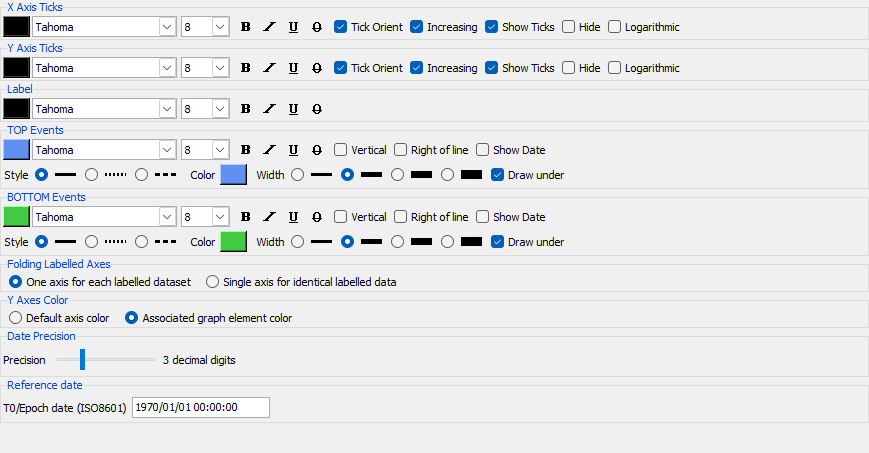
- X Axis Ticks - Change the defaults for any X horizontal axes.
- Y Axis Ticks - Change the defaults for any Y vertical axes.
- Label - Change the defaults for axis labels.
- Events - Change the defaults for the TOP/BOTTOM Event markers.
- Folding Labelled Axes - Activate the folding or reuse of common labelled axes when the labels are identical.
- Y Axes Color - Activate the automatic coloration of Y vertical axes with the color of their associated graph element (if an axis is associated to more than one graph element due to folding, then a-default axis color is used).
- Date Precision - Set the default precision in number of decimal digits for displayed seconds (0 to 12).
- Reference Date - Set the T0/Epoch date for
ISO8601+SECONDS,EUR+SECONDSandOFFSETdate formats 0 second value (ISO8601 format date).
Markers tab
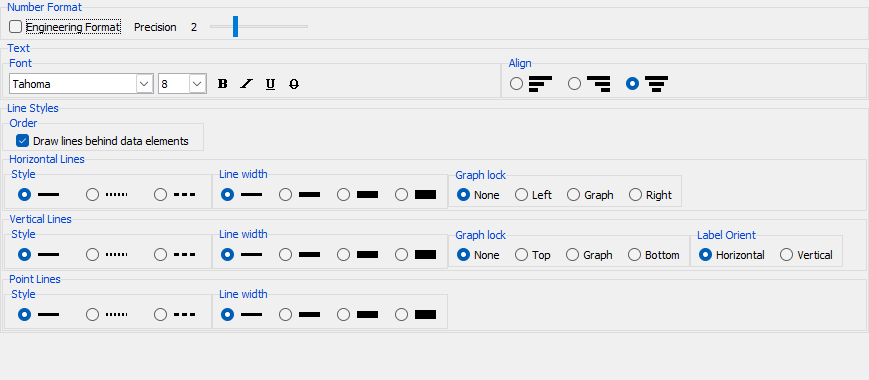
- Number Format - Change the defaults for displaying numerical values in markers.
- Text - Change the defaults for marker text.
- Line - Change the default line style for different marker lines.
- Graph lock - Change the default graph lock for Horizontal and Vertical markers.
- Label Orient - Change the Label orientation for Vertical marker labels.
HardCopy tab
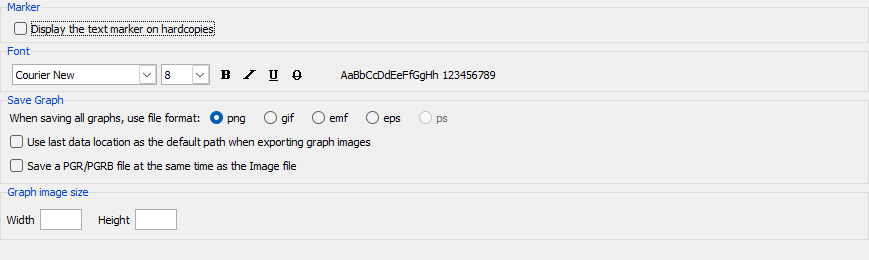
The hardcopy marker is a small text block which will be added to the graph when a hardcopy (Print, Copy, Image) is taken.
- Marker - If checked, a marker giving the current date and time will be added to the hard copy.
- Font - Selects the font to be used to display the marker.
- Save Graph - Selects the image format to be used to save all the graphs. Select preferences about individual graph save default location and whether to save a PGR at the same time.
- Graph image size - Specify the size of all saved image files. If left empty then command line/PCF image saves will maximize any graphs before saving and user interface saves will save the graph with the size it is displayed.
Calculator tab
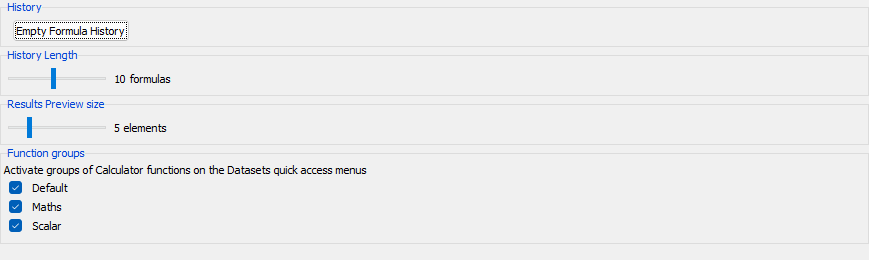
- History - This button will clear the calculation history list.
- History Length - Selects the number of entries kept in the history list (limits 1-100).
- Results Preview Size - Selects the number of entries displayed in the results table (limits 1-20).
Window Tabs tab

- Tabs - If checked then the Windows Tabs will be displayed.
- Tab rows - Select the number of rows of tabs to display. When there are too many tabs to display on one row, it can either overflow onto another row or it can be scrolled with the middle mouse button (limits 1-3).
Command Log tab
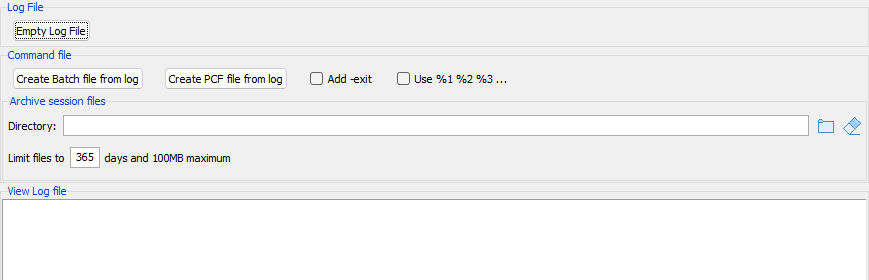
- Empty Log File - Clear the current log file. -TIP: This can be used after creating a batch file to start recording a new list of operations.
- Create Batch/Shell file from log - Construct a new Windows .bat of Unix .sh file from the current contents of the log file.
-
Create PCF file from log - Construct a new Presto Command File .pcf file from the current contents of the log file. -There are two options which affect the creation:
- Add -exit - Add the -exit command line option to the end of the file to automatically exit PrestoPlot.
- Use %1 %2 %3 ... - Replace all loaded data file names by the Batch file argument variables (%1/$1 represents the first argument to the batch file). This option is ignored for PCF files.
-
Archive session files - On exit, archive the contents of the log file as a dated PCF session file (Session-YYYY-MM-DD-HH-MM-SS.pcf).
- Directory A display of the current archive directory and buttons to change or empty it. If the directory field is empty or the directory does not exist then session files will not be archived.
- Days The number of days to keep the archived files. At startup PrestoPlot will remove older files and then any files until the used file space is less than 100MB (oldest files first).
Plug-ins tab

A list of the current loaded plug-ins, their versions and a brief description. Selecting a Plugin in the list will display any configuration options for that plugin.