Customize graph curves
The Configure Graph Data window changes the appearance of one data set, the name of the data set is displayed on the title bar.
User Interface
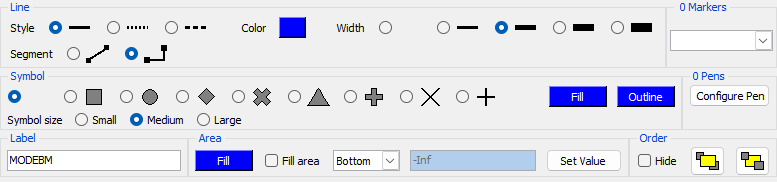
Configure Window Menu
The dialog menu contains the following specific entries:
- Copy configuration command to clipboard - Copies only settings different from the defaults to the clipboard as a
-configureelementcommand line option. - Copy complete configuration command to clipboard - Copies all the current set of settings to the clipboard as a
-configureelementcommand line option.
Tip
This can be activated using the two shortcut buttons on the bottom of the dialog
Configuration
The following elements can be changed:
- Line - Change the line style, color, width and segment type.
N.B. Changing the line color will also change the symbol and area fill colors.
- Symbol - Change the form of the data point symbol and the outline and fill colors used to draw each symbol.
N.B. The symbol is best used on small data sets or on zoomed regions.
- Label - Change the label displayed on the graph legend.
- Area - Enable the filling of the area underneath or above the graph line and its fill color.
- Order - Change whether this element is displayed and the order of this element relative to the other elements, either before all the others or after the others.
N.B. The order of the elements is only necessary when the fill region is activated: the elements are drawn from the bottom to the top of the legend list.
Tip
Hidden graph elements can be reactivated by using the Configure Axes sub-menu on the graph menu to reopen the Configure Graph Data window.
- Pens - Display the number of pens defined for this set of data with a button to open the Configure Pens window.
-
Markers - It is possible to add one of five different annotation markers to a graph, these markers are associated with one data element. Selecting the appropriate marker type in the list will automatically create a new marker.
N.B. the current number of markers for this element is displayed on this frame.
-
The following marker types are supported:
- HORIZONTAL - A horizontal line with a block of text. The text can contain the Y position value.
- VERTICAL - A vertical line with a block of text. The text can contain the X position value.
- TEXT - A block of text.
- POINT - A block of text connected to one point on the data set. The connected point can be changed by dragging the line segment with the left mouse button. The text can contain the X position value, the Y position value and the Number of the current data element.
- 2POINT - A block of text connected to two points on the data set. The connected points can be changed by dragging each line segment with the left mouse button. The text can contain any of the aditional marker values.
-
The appearance of the markers can be changed by using the right mouse button to display the Configure Marker window.
-
Tip
A markers position can be changed by dragging the marker with the left mouse button. Press Shift while dragging (VERTICAL or HORIZONTAL) to attach the marker to the point closest to the mouse pointer. The POINT and 2POINT markers can be moved when the associated text block changes color, the end point will automatically attach to the point closest to the mouse pointer.
Tip
A marker can be removed by hitting the DELETE button while holding the mouse pointer over it.